

How do I sign in to my farm?
Signing in is the first step to seeing your greenhouse readings and controlling it. You use the email and password of your own account. No other setup is needed.
Before you start
Section titled “Before you start”- Role needed: any role (Owner, Admin, Viewer). Your role decides what you can do after signing in, not whether you can sign in.
- What you need: an account the farm owner created for you through an invitation, and your farm link.
- Where it is available: web. In the app you also type your greenhouse address first (see How do I install the AASOM app and sign in?).
How to get there
Section titled “How to get there”Open your farm link in a browser. If you are already signed in, the farm opens straight on Home; to sign in with another account press the logout button (⏻) in the side menu first.
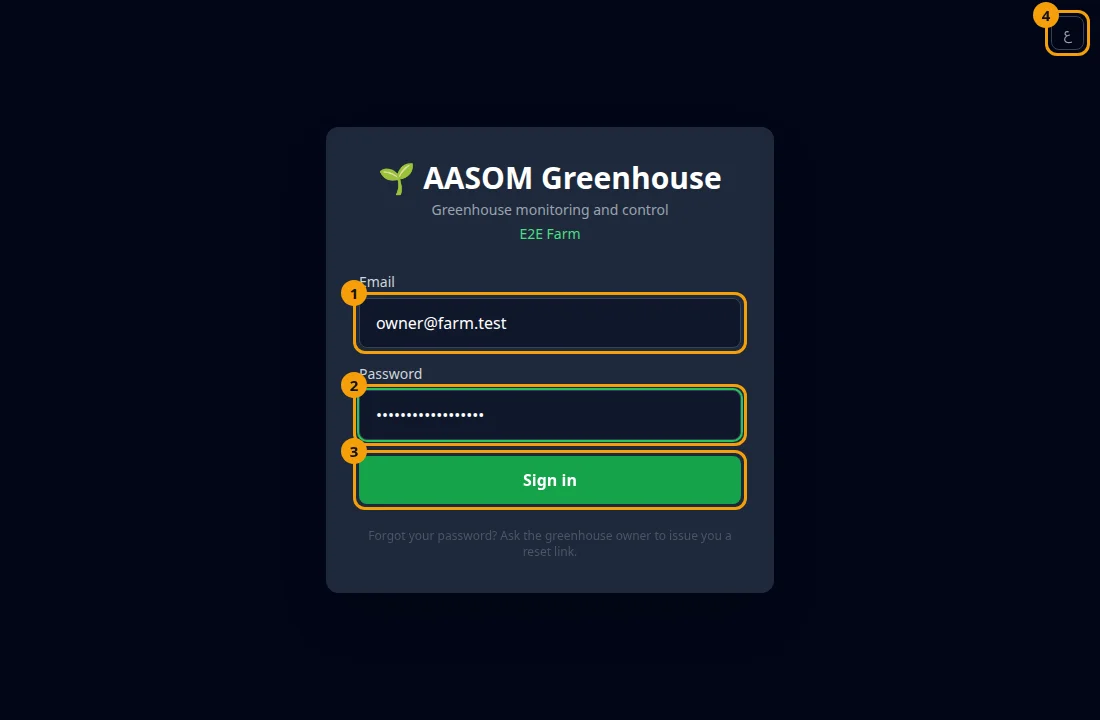
- Open your farm link. The sign-in page shows “AASOM Greenhouse” and “Greenhouse monitoring and control”.
- Type your email in the Email field.
- Type your password in the Password field.
- Press Sign in.
To change the language, press the small button in the corner of the page (EN or ع).
What happens next
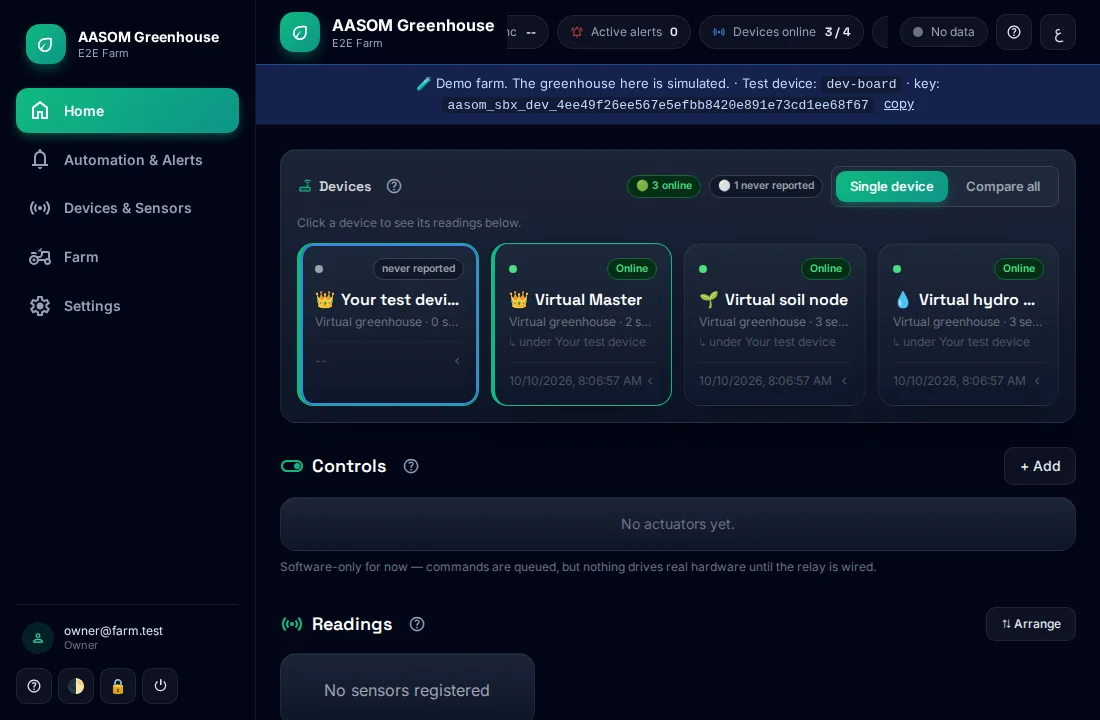
Section titled “What happens next”The farm dashboard opens with your readings and controls.
 If “Sign-in failed” appears, check your email and password and try again.
- A password has at least 10 characters.
- If the farm is new and has no accounts yet, the first account created becomes the Owner.
- If you see “This farm is waiting for its owner”, open the invitation link you were sent.
Common problems
Section titled “Common problems”I forgot my password. There is no automatic reset by email. Ask the farm owner to issue you a reset link. The link works only once.
“This link is invalid, already used, or expired”. Ask the farm owner for a new one.
“Connection error”. Check your internet connection and try again.
Glad it helped, thank you!