

How do I get an alert when a reading goes out of range or a device goes quiet?
An alert tells you when something needs your attention: a reading went out of range, or a device stopped reporting. An alert never switches anything on by itself; it sends you a notification. To run an actuator automatically, use automation rules.
Before you start
Section titled “Before you start”- Role needed: Admin or Owner to add, edit and delete. A Viewer can see the alerts and the history only.
- Where it is available: web.
- Alerts are per device: choose the device from the list at the top of the page.
How to get there
Section titled “How to get there”- Sign in (see How do I sign in to my farm?).
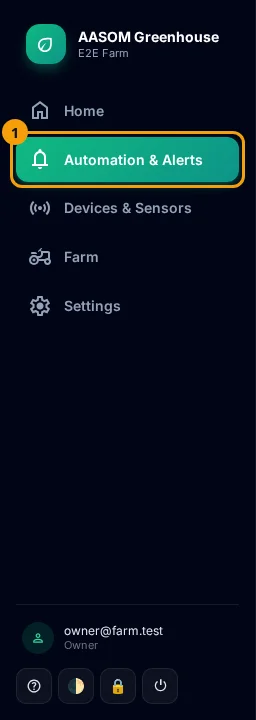
- Press Automation in the side menu. On a phone, it is in the bar at the bottom of the screen.
- Choose the device at the top of the page, then find the “⚠ Sensor Alerts” section.
The two alert types
Section titled “The two alert types”| Type | When it fires |
|---|---|
| Threshold | When a sensor reading leaves a range you set: below your minimum or above your maximum |
| Device offline | When the device stops sending readings for a number of minutes. It is checked every minute, and a suspended device is skipped because it is offline on purpose |
Add an alert
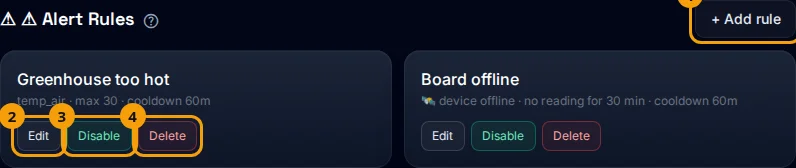
Section titled “Add an alert”- Press + Add rule.
- Choose the alert type.
- For Threshold: choose the sensor, then type a min value and/or a max value (at least one).
- For Device offline: type how many minutes of silence should fire the alert.
- Type the cooldown in minutes, the shortest gap between two alerts (default 60).
- Type a name and a custom message if you like (both optional).
- Press Save.
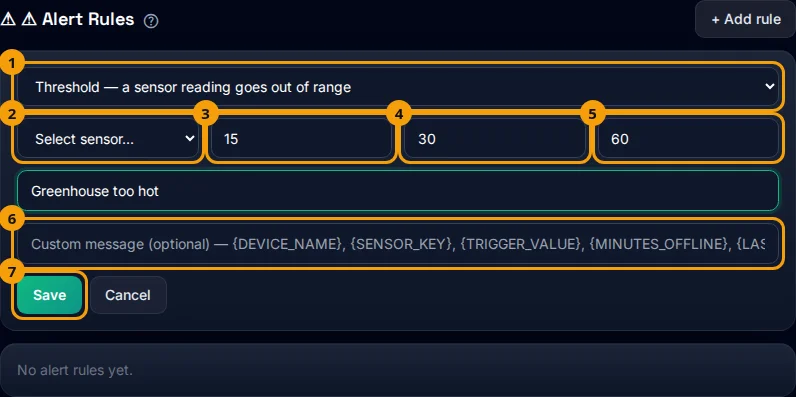
In the custom message you can use these variables and they are replaced with real values: {DEVICE_NAME}, {SENSOR_KEY}, {TRIGGER_VALUE}, {MINUTES_OFFLINE} and {LAST_SEEN}.
Edit, disable or delete an alert
Section titled “Edit, disable or delete an alert”- Edit: changes the limits, cooldown, name and message. The sensor and the alert type cannot be changed; delete the alert and create a new one.
- Disable / Enable: stops the alert without deleting it, and its card turns pale.
- Delete: removes the alert after you confirm.
Alert history
Section titled “Alert history”The Recent Alert History section under the rules shows the last 20 alerts fired for the chosen device, each with its message and time.

The number of enabled alerts also appears in the top bar: Active alerts.
- Start with a max alert for temperature and a min alert for soil moisture.
- Avoid a very short cooldown so you do not get repeated messages.
- Add a device offline alert for every important device.
Common problems
Section titled “Common problems”I got no alert although the value is out of range. The alert may be disabled, still in its cooldown after an earlier alert, or the chosen device may not be the one you created it for.
I do not see the add and edit buttons. Your role is Viewer. They show for Admins and Owners only.
I get too many messages. Raise the cooldown or widen the range.
Glad it helped, thank you!