

How do I create an automation rule that runs an actuator automatically?
An automation rule says: if a sensor crosses a limit, then turn an actuator on (or off). For example: if soil moisture stays below 30 for 5 minutes, open the irrigation valve for 10 minutes.
⚠ A rule sends a real command to an output on the board, so the equipment connected to it really runs. Set rules carefully.
Before you start
Section titled “Before you start”- Role needed: Admin or Owner. A Viewer can only see the rules.
- Where it is available: web.
- The output must be set up (what is connected to it and the technician limit) to work. See Outputs.
How to get there
Section titled “How to get there”- Sign in (see How do I sign in to my farm?).
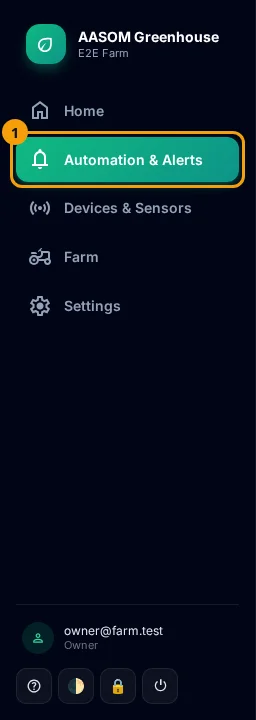
- Press Automation in the side menu. On a phone, it is in the bar at the bottom of the screen.
- Choose the device at the top of the page, then scroll to the “⚙ Automation Rules” section.
Add a rule
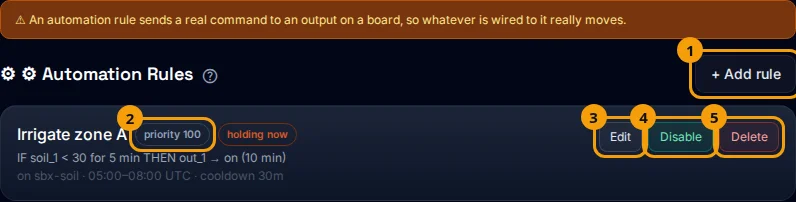
Section titled “Add a rule”- Press + Add rule.
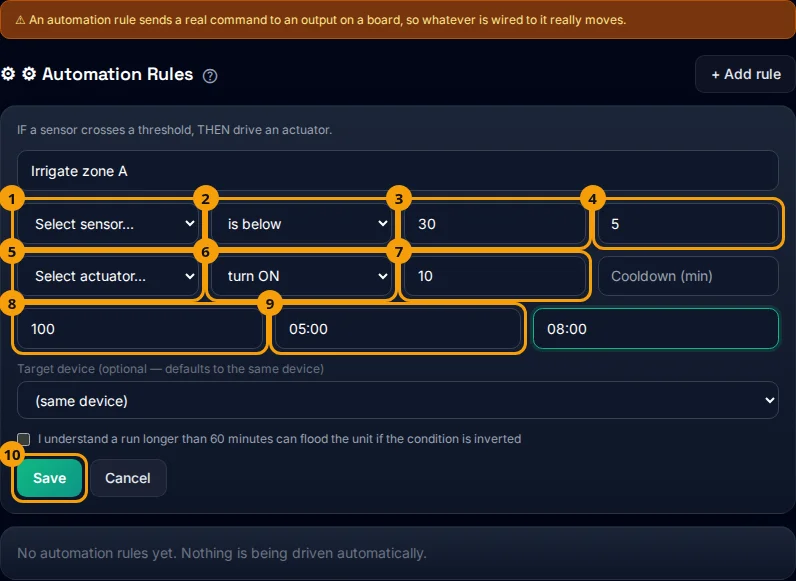
- Type a rule name, such as “Irrigate zone A”.
- Condition (if): choose the sensor, then below or above, then the threshold, and optionally sustained for (minutes) so the condition must hold that long before acting.
- Action (then): choose the actuator, then turn on or turn off, and optionally for (minutes). If you leave it empty the command stays latched until something changes it.
- Set the cooldown and the priority (the higher number wins).
- Optional: a time window (start/end in HH:MM, UTC), and a target device if the actuator is on another device.
- Press Save.
How do rules protect your farm?
Section titled “How do rules protect your farm?”- Maximum duration: a timed run is limited to 60 minutes. For longer (up to 240 minutes) tick the box that says you understand a run longer than 60 minutes may flood the unit.
- Priority: if two rules conflict on the same actuator, the one with the higher priority wins, so the actuator does not flip back and forth.
- Guaranteed stop: the scheduled stop is saved in the database, so a platform update cannot lose it.
- Stale reading: in the periodic check a rule ignores a reading older than 30 minutes, so a dead sensor cannot keep a valve open.
Rules are evaluated when a new reading arrives, and again every minute by the periodic check.
Reading a rule card
Section titled “Reading a rule card”Each card shows the name, the priority, a Paused badge if it is disabled, and a Holding now badge if it is currently holding the actuator on. A line If … then … shows the condition and action, then the device, window and cooldown. The Edit, Disable/Enable and Delete buttons are for Admins and Owners.
- Set sustained for to 3–5 minutes to ignore a passing reading.
- Test a new rule with a short duration first (one or two minutes).
- You can see what happened in the automation log.
Common problems
Section titled “Common problems”A message appeared when I saved. Usually a missing field: the name, sensor, threshold and actuator are required, and the window start and end must be given together.
The rule does not run. It may be disabled, in its cooldown, the output may be unset or disabled, or the device may be suspended. The automation log gives the reason.
I do not see the add button. Your role is Viewer.
Glad it helped, thank you!