

How do I accept an invitation to a farm?
The farm owner (or an Admin) invites people from the Users & Access section of the Settings page by pressing Create invite link. Each person receives a personal invitation link. Opening it lets you choose your password and activates your account.
Before you start
Section titled “Before you start”- Role needed: none. Anyone with a valid link can use it. The role you get (Owner, Admin or Viewer) was chosen by the person who invited you.
- What you need: the invitation link from the farm owner.
- Where it is available: web. You can open the link in the browser of your phone or computer.
How to get there
Section titled “How to get there”Open the invitation link the farm owner sent you (it contains /invite?token=). This page is not in the menu: only the link opens it.
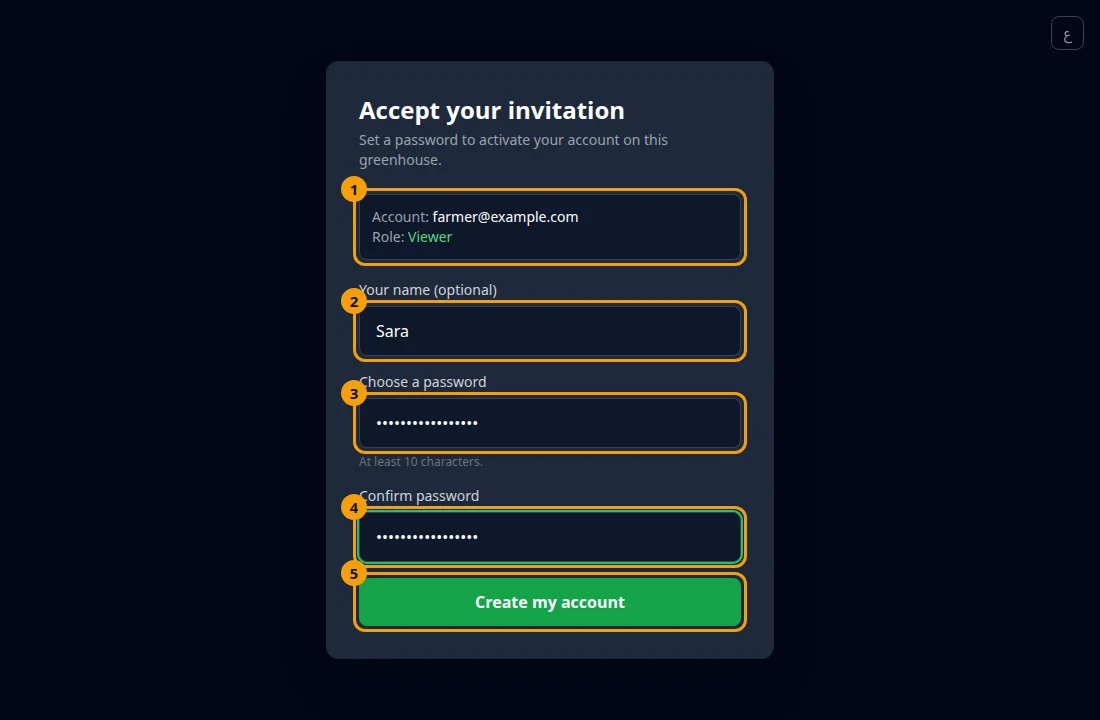
- Open the invitation link. The page title is “Accept your invitation”.
- Check the Account line. It shows your email, and the Role line shows the role you were given.
- Optionally type your name in Your name (optional).
- Type a password in Choose a password. It must be at least 10 characters.
- Type the same password again in Confirm password.
- Press Create my account.
What happens next
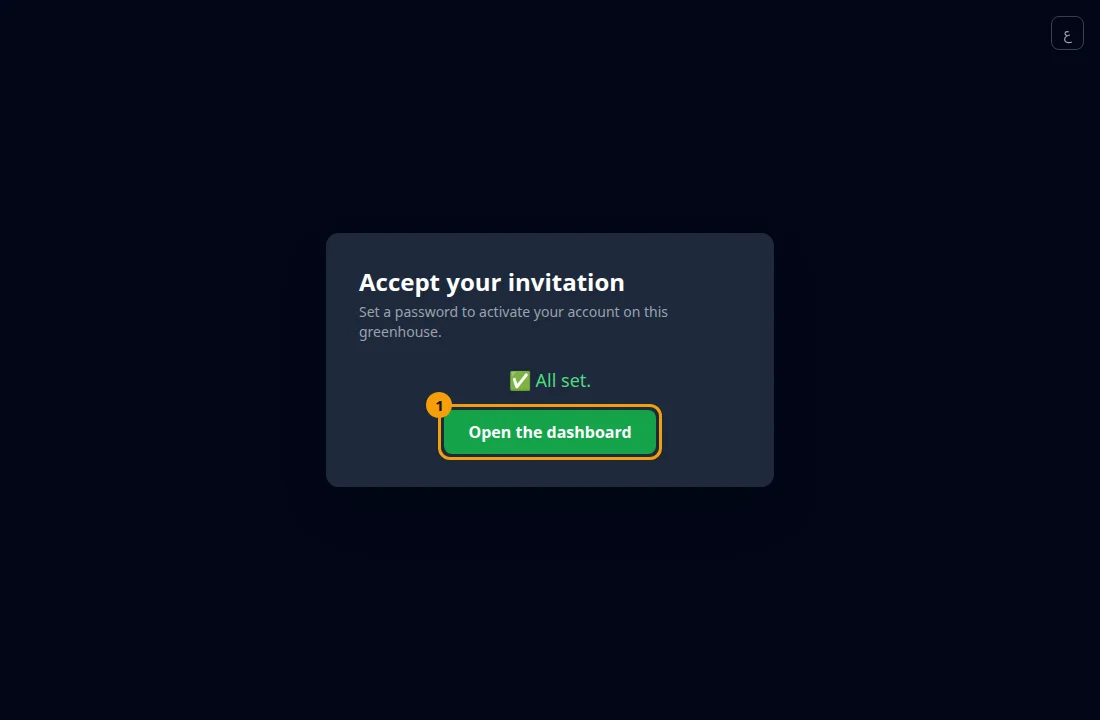
Section titled “What happens next”The page shows “All set.” Press Open the dashboard to go to the farm.
 Next time, sign in with your email and the password you just chose (see How do I sign in to my farm?).
- The link works once. After you finish, it no longer opens.
- If you see “The two passwords do not match”, type both again carefully.
- Keep the link private. Anyone who opens it first can set the password.
Common problems
Section titled “Common problems”“This link is invalid, already used, or expired.” Ask the farm owner to send you a new invitation.
The page shows no form. The link may be cut off. Copy the whole link, including the part after token=.
Glad it helped, thank you!