

How do I read the charts and change the time range?
The Charts section of Home shows how the readings of the selected device changed over time, so you can tell whether temperature or humidity is rising or falling, and compare today with yesterday.
Before you start
Section titled “Before you start”- Role needed: any role.
- Where it is available: web.
How to get there
Section titled “How to get there”- Sign in (see How do I sign in to my farm?). Home is the first page you see.
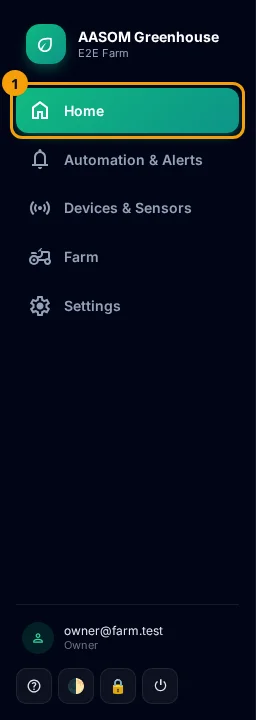
- At any time, press Home in the side menu. On a phone, it is in the bar at the bottom of the screen.
- Select a device in the Devices strip, then scroll down to Charts, below the readings.
Choose the time range
Section titled “Choose the time range”
Above the charts is a bar with five buttons: 1H (last hour), 6H (last 6 hours), 24H (last 24 hours, the default), 7D (last 7 days) and 30D (last 30 days). Press one and all charts change at once.
The same range is used when you export CSV.
Read a chart
Section titled “Read a chart”
- One chart per sensor type: temperature in one, humidity in another, soil moisture in a third, and so on.
- The colored badge above the chart shows the latest value with its unit.
- Under the title is the range shown, such as “Last 24 Hours”.
- If a device has several sensors of the same type, their lines share one chart. The second one is dashed, and the names are in the chart legend.
- Hover (or touch the chart on a phone) to see each line’s value and time.
- The expand button in the corner makes the chart as wide as the page. Press it again to shrink it.
Compare all devices
Section titled “Compare all devices”Press Compare all in the Devices strip. The charts then show all your devices together, each in its own color, instead of one device. To go back, select a device card.

- The page refreshes itself about every 90 seconds.
- 24H is enough for daily checks. Use 7D and 30D to see slower trends, such as soil drying out over a week.
- Switching language or light/dark mode redraws the charts with the right colors.
Common problems
Section titled “Common problems”There are no charts. The device has no sensors yet, or sent no readings in this range. Try a longer range, and check the device in the device list.
A line breaks in the middle. The device was offline then. Readings are never guessed, so there is no line where there is no reading.
I want the numbers, not the picture. Use Export CSV.
Glad it helped, thank you!