

How do I export my readings to a CSV file?
Export CSV downloads the readings of one device as a file that opens in Excel or Google Sheets, so you can keep them, analyze them or send them to an agronomist.
Before you start
Section titled “Before you start”- Role needed: any role.
- Where it is available: web.
- One device at a time: the device currently selected in the Devices strip is exported.
How to get there
Section titled “How to get there”- Sign in (see How do I sign in to my farm?).
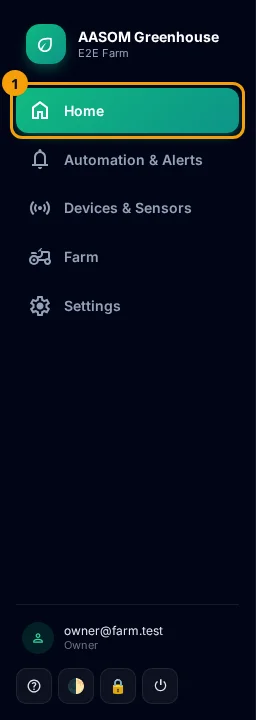
- Press Home in the side menu. On a phone, it is in the bar at the bottom of the screen.
- The Export CSV button is above the charts, next to the range buttons.
- Select the device in the Devices strip.
- Pick the range with 1H, 6H, 24H, 7D or 30D.
- Press Export CSV.

A file named device-name-range.csv downloads, for example sbx-master-24h.csv. It holds every reading in the chosen range, oldest first.
What is in the file?
Section titled “What is in the file?”One line per reading, in five columns:
| Column | Meaning |
|---|---|
timestamp |
When the reading was taken, in ISO format such as 2026-10-10T09:00:00.000Z |
sensor_key |
The sensor’s channel id on the device, such as temp_1 |
sensor_type |
The sensor type, such as temperature |
unit |
The unit; may be empty |
value |
The value |
- The file follows the range selected when you press the button. Change the range first, then export.
- If Excel puts everything in one column, open the file with Data → From Text/CSV and choose the comma.
- The friendly names you gave your sensors are not in the file. It uses
sensor_key. - To export another device, select it first, then press the button again.
Common problems
Section titled “Common problems”The button downloads nothing. No device is selected yet. Select one in the Devices strip.
The file is empty or has only the header line. No readings arrived in the chosen range. Try a longer range, and see Charts.
Did this article answer your question?
Glad it helped, thank you!